To add a background to your Handle when personalizing, users have the option to select an NFT from their wallet or purchase one from the marketplace. If you don't already have a handle, one can be minted at Handle.me. Once you have a handle, the option to add a background will be available in the personalization section of your handle.
To set a background, first select the Handle you want to customize. At the bottom of the Handle dropdown, choose the "Personalize" button. This will take you to the personalization page.
Inside the design window, you will see the five personalization sections. Select the "Background" option. Set the NFT toggle to true; this will give you the option to add an NFT.
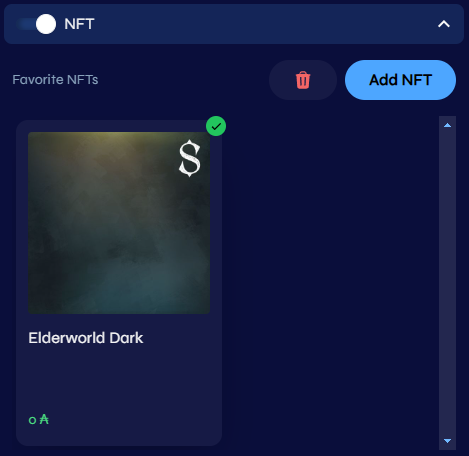
Once you have set the NFT toggle to true, you will see the option to add an NFT. clicking the "Add NFT" button will open the NFT selection page. Here you will see all the NFTs in your wallet. If none are found, this page will be empty, with the text "No usable NFTs found in your wallet". If you have NFTs in your wallet and wish to set one as your background, select the NFT you want and click the done button in the bottom right of the page.
If you don't have any NFTs in your wallet, or you would like a new one, they can purchased from handle.me's marketplace. To do this, at the top of the page there is the option to switch the view from "Wallet" to "Marketplace". NFTs in the marketplace are stored in collections. Open a collection and select the desired NFT, or if you know the name of the NFT you want, use the search bar in the top right. Once you have selected an NFT or multiple NFTs, click the done button in the bottom right. This will add them to your handle's personalization page.
Important:
Some NFTs on the marketplace use Creator Defaults. These are personalized styles, like border, font, and shadow. These defaults will limit you to only using these predetermined options if the NFT creator set them as mandatory.
Once you have closed the add NFT window, you will see all the NFTs you have selected under the NFT dropdown. Selecting an NFT automatically sets it as your background. To change the background, simply select a different NFT from the dropdown.
Note:
You can only have an NFT or a color as your background. Toggling the color on will replace the NFT background with the selected color.
Now that you have a background, you can continue to personalize your handle. Once you are happy with the design, you can click the checkout button in the top right, which will take you to the checkout page. Here you can review your design and make any final changes before minting your personalized handle.